 MetadataViewer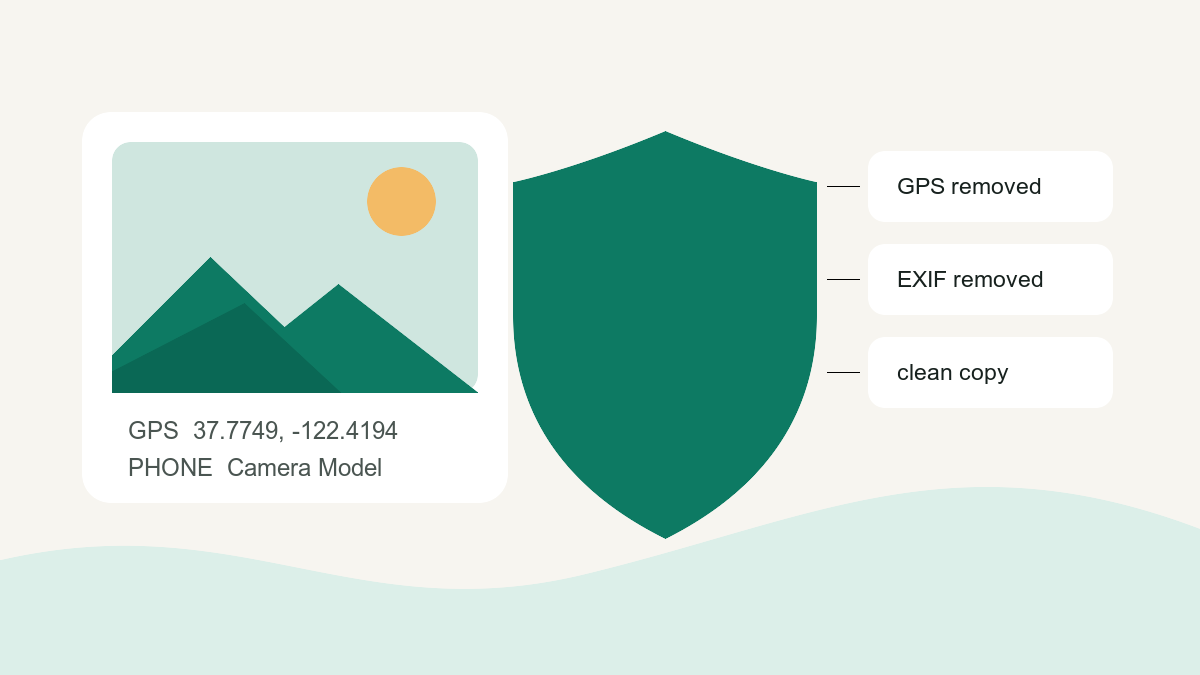
Many phone photos contain more than visible pixels: they can include GPS coordinates, capture time, phone model and editor information. Whether those fields survive depends on camera settings, later edits and the way the file is shared, so inspect the actual copy instead of assuming.
This is a platform guide for iPhone, Android, Windows and Mac. It explains what each built-in privacy control removes, what it leaves behind, and when a dedicated remover is necessary. If you already want the one-click action, go directly to the transactional photo metadata remover.
What photo metadata actually reveals
Photo metadata can include EXIF data, XMP or IPTC fields such as:
- GPS location — latitude/longitude precise enough to identify your home
- Timestamps — when the photo was taken and last edited
- Device details — camera or phone make, model, sometimes a unique serial number
- Capture settings — lens, aperture, shutter speed, ISO
- Software tag — an editor or export application, when it writes the field
You can check any photo in seconds with our image metadata viewer — it runs in your browser, so the photo is never uploaded.
Cross-platform option: clean a copy locally in the browser
- Open the photo metadata remover
- Drop your photo in — the tool shows the supported fields it finds
- Click Remove metadata & download
The clean copy downloads instantly. JPG, PNG and WebP metadata containers are removed without re-encoding the compressed image stream; JPEG ICC colour profiles are retained. Less common image formats use a PNG export fallback. Because the processing runs locally, the photo is not sent to an upload server.
Remove metadata on iPhone
- Open the photo in the Photos app
- Tap the ⓘ info button (or swipe up)
- Tap Adjust next to the location → No Location
- For the date: tap Adjust next to the timestamp
Limitations: these controls do not promise to clear every EXIF/XMP/IPTC field. Apple’s current iPhone sharing guide documents the metadata options and notes that “All Photos Data” can include the original file, edit history and metadata for supported share methods.
Remove metadata on Android
Google Photos distinguishes a camera-written location from an estimated or manually added location. Its official location help says an estimated location can be removed, but a location saved by the camera cannot be edited there. To prevent future capture, turn off the camera’s location tag; to clean an existing local file, make a copy with a metadata-removal tool and verify that copy.
Remove metadata on Windows
- Right-click the photo → Properties → Details tab
- Click Remove Properties and Personal Information
- Choose Create a copy with all possible properties removed → OK
Caveat: Windows removes only the properties it can read — some XMP and maker-specific blocks survive. Verify the result with a metadata viewer.
Remove metadata on Mac
macOS Preview can remove location only: open the image → Tools → Show Inspector → ⓘ → GPS tab → Remove Location Info. For broader metadata removal, Mac users can use Terminal (exiftool -all= photo.jpg, after installing ExifTool) or the browser tool. They are separate implementations, so verify the output rather than assuming identical coverage.
Does social media remove metadata for you?
Do not rely on a social platform as your privacy boundary. Upload, download and “send as file/original” paths can behave differently and platform behavior changes. If metadata matters, inspect the exact file before upload and inspect a downloaded copy when the platform’s output is part of your workflow.
Bottom line
Built-in OS options are partial at best — they focus on location and leave the rest. For a broader, verifiable clean: drop the photo into the metadata remover, download the clean copy, then inspect that copy again. JPG, PNG and WebP media streams are not re-encoded; other formats use the documented fallback.